
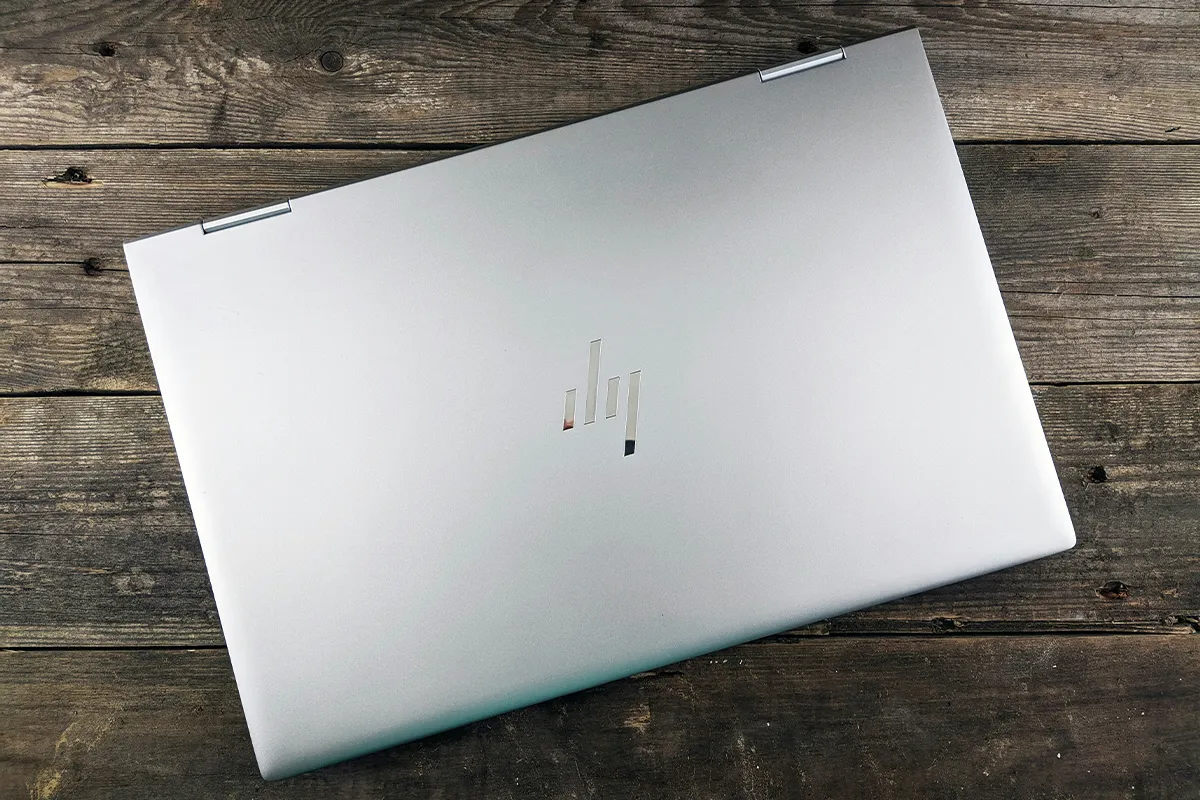
Are you fed up with switching tabs frequently and looking for the best laptop screen extenders for HP EliteBook? If yes, then you have landed on the right page. It is not important to have multiple PCs in this age of technology. With just one powerful PC in place, you can attach multiple monitors to it and improve your daily working capacity.
These laptop screen extenders for office work can help you escape tab switching. Now you can have multiple screens open all at once. They are very helpful for working professionals who are traders, freelancers, writers, developers, remote teams, students, and anyone who needs to manage several tasks simultaneously with just one PC.
Top 10 Best Laptop Screen Extenders for HP EliteBook Ideas:
This list uses trusted brands and real products people buy today. Several options use USB-C, and a few also support HDMI for more ways to connect. Use these ideas to build a portable monitor for an HP EliteBook setup that stays simple and reliable.
1. ASUS ZenScreen Touch MB16AHT
Touch control can save time in small ways. With ASUS ZenScreen Touch MB16AHT, you can tap and scroll on the screen. That is useful when you read long notes or move through a report. It can also help with gaming, because you can keep chat, maps, or guides on the second screen.
On many EliteBook models, USB-C video makes setup easier. In that case, one cable can carry the picture, and sometimes power too. If your model needs HDMI, a dock or adapter can help. A steady stand and a neat cable path make the screen feel easy to use every day.
Pros:
- Touchscreen helps with quick scrolling.
- Two USB-C ports add flexibility.
- Micro-HDMI adds HDMI compatibility.
- Built-in kickstand supports many angles.
Cons:
- Touch needs a USB data link.
- The micro-HDMI cable can be annoying.
- No laptop power pass-through.
- USB-C video needs DP Alt.
2. ViewSonic VG1655
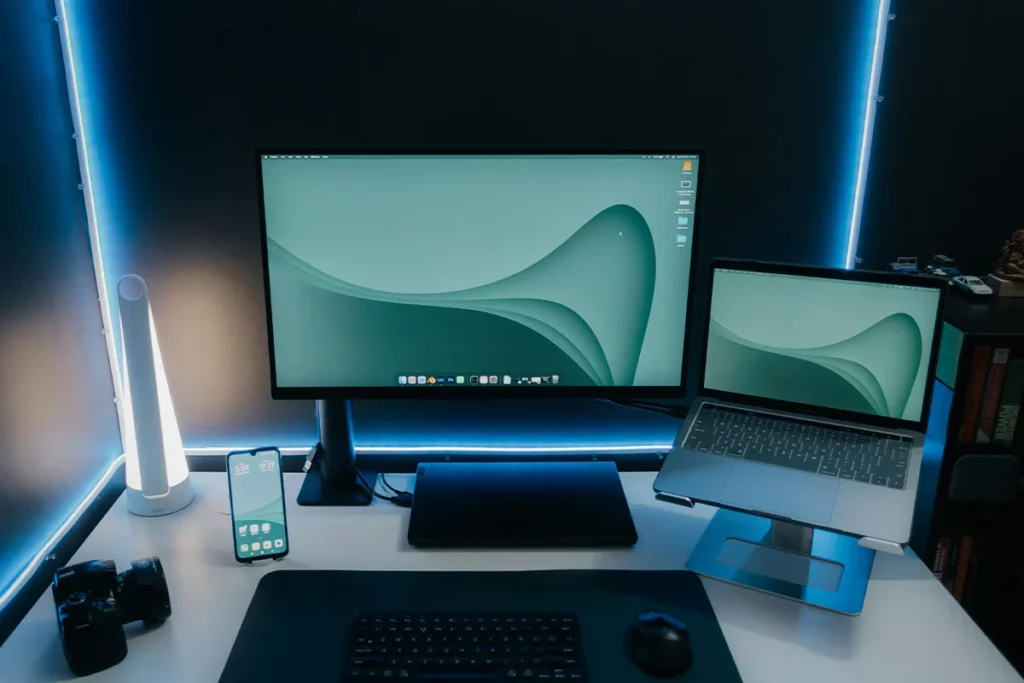
Some people need a screen that connects in more than one way. ViewSonic VG1655 is popular for this reason. It can fit homework, office work, and travel work. It also helps if your meeting room has its own cables.
In a mixed setup, HDMI can be a safe backup. That is why a mini HDMI portable monitor choice can feel less risky. When the link is stable, your second screen can hold chat, email, or a second document. Then your main screen can stay on the main task.
Pros:
- Two-way 60 W power delivery.
- One USB-C cable can work.
- Mini-HDMI offers an easy backup.
- A foldable stand and cover are included.
Cons:
- Full USB-C video is required.
- 1080p only for big spreadsheets.
- Built-in speakers are very small.
- Charging needs a strong USB-C source.
3. MSI PRO MP161
Simple tools can be the best tools. MSI PRO MP161 is made for daily work like writing and reading. It is a good pick if you want a clear screen without extra steps from the best brand. For many people, that is enough to work faster.
A smooth setup is part of comfort. With a plug-and-play laptop monitor style setup, you can start work faster each day. If your EliteBook supports USB-C video, the connection can be quick. If not, plan for HDMI or a dock, so the routine stays easy.
Pros:
- Two USB-C ports for video.
- Mini-HDMI works with desktops.
- The stand tilts up to 180°.
- Built-in speakers for quick audio.
Cons:
- Brightness is only 250 nits.
- Color depth is quite limited.
- No touch support for gestures.
- Power comes through USB-C.
4. AOC 16T2
Value matters, but trust also matters. AOC 16T2 comes from a well-known monitor brand. It is useful when you want extra space, but you also want a brand you recognize. That can bring peace of mind.
For busy work, two screens feel helpful right away. A dual-screen setup for business laptop work can reduce tab switching. One screen can show a file, and the other can show notes. This can also support a screen extender for a remote work routine, where meetings and tasks happen all day.
Pros:
- 10-point touch works on Windows.
- The built-in battery powers the screen.
- USB-C plus Micro-HDMI inputs.
- A smart cover protects during travel.
Cons:
- The battery must be charged first.
- Touch needs a USB with HDMI.
- More weight than USB-C only.
- The Micro-HDMI cable can be fiddly.
5. Acer PM161Q
A light setup can help you stay flexible. Acer PM161Q is a simple portable monitor from a known brand. It fits well for travel days and small desks. It also works for homework and remote work when you do not want a big monitor on the table.
Better posture can come from better screen placement. A lightweight external monitor for work can sit at the side, so you do not crowd your main screen. Email and chat can stay there. Your main laptop screen can stay on the work you need to finish.
Pros:
- USB-C and HDMI support many devices.
- Includes a mini-HDMI-to-HDMI cable in the box.
- The anti-glare screen helps with long reading.
- Speakers are included for basic sound.
Cons:
- Response time is quite slow.
- 250 nits feels dim outside.
- No touch features available.
- USB-C video needs DP Alt.
6. Philips 16B1P3302
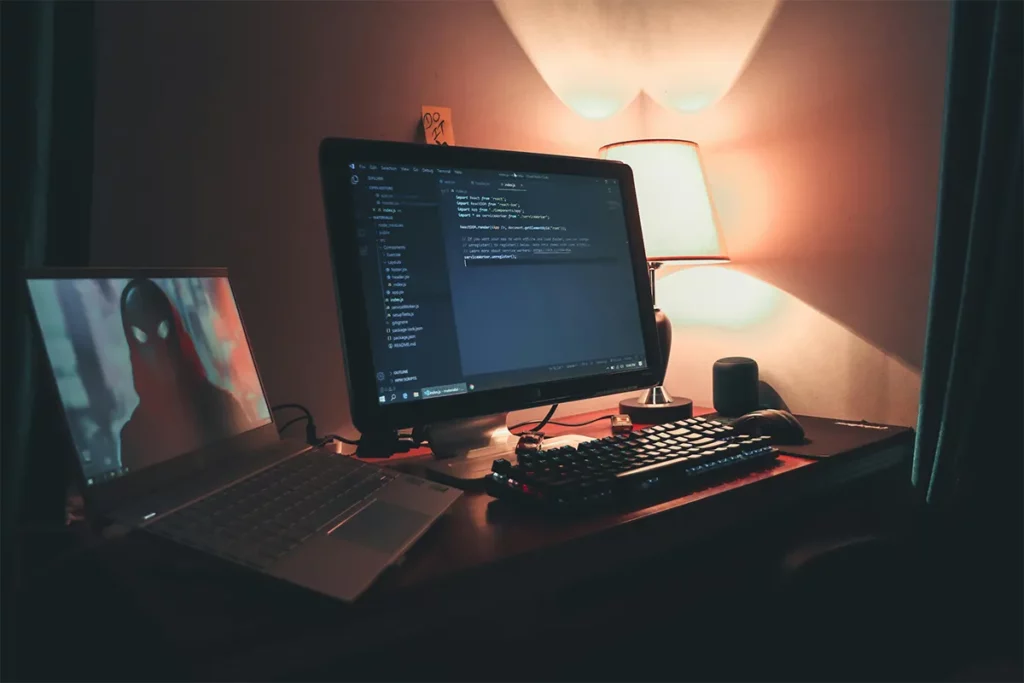
A familiar brand can feel safe at work. Philips 16B1P3302 is made for office use. It is a good choice if you want full HD laptop screen extenders that keep text clear and easy to read. This also fits well in a clean desk setup.
Many EliteBook users rely on USB-C for video. In that case, a USB-C DisplayPort Alt Mode monitor can work well. When the cable setup is simple, the screen feels easier to use. That can help you stay focused during long work blocks.
Pros:
- USB-C supports DP Alt Mode.
- DisplayLink is available via USB-A.
- Runs up to 75 Hz.
- Eye-care modes reduce strain.
Cons:
- Only one USB-C input.
- No HDMI port for consoles.
- DisplayLink needs driver installation.
- USB-A use can add lag.
7. HP E14 G4 Portable Monitor
Staying with the same brand can be a simple choice. THE HP E14 G4 Portable Monitor is made to fit a business laptop style. For many EliteBook users, it feels like a natural match. It can also work well with other HP gear you may already use.
A clean setup helps you use the second screen more often. With USB-C video support, daily use can feel smooth and quick. The second screen can show a meeting, a checklist, or a report. Then you can keep your main screen clear for the main work.
Pros:
- Bright 400 nits display.
- Two USB-C ports for video.
- Pairs neatly with HP docks.
- The slim build suits travel days.
Cons:
- Requires USB-C DP Alt Mode.
- No HDMI input available.
- Not VESA-mount compatible.
- Small 14-inch screen size.
8. Dell C1422H Portable Monitor
Business tools should feel steady and clear. The Dell C1422H Portable Monitor is made for work travel and daily office use. It is a good option when you want a strong brand name. It also fits well for people who move between places during the week, especially with Bluetooth tools like a mouse or keyboard.
For a solid EliteBook dual monitor setup, think about your most common location. At a desk, a dock can make things very neat. On the go, one cable can be the best plan. When setup is easy, you will use your second screen more often.
Pros:
- Dual USB-C with DP Alt Mode.
- Supports 65 W power delivery.
- Power pass-through keeps the laptop charged.
- Simple setup with one cable.
Cons:
- USB-C only, no HDMI.
- Needs DP Alt Mode output.
- No touch or pen input.
- No speakers for quick audio.
9. Lenovo ThinkVision M14
A clean design can help you stay focused. Lenovo ThinkVision M14 is built for office-style work. It is good for writing, reading, and side-by-side review. It also looks natural in a meeting room.
Many people want the best portable monitor for productivity, not extra features. A good screen should start fast and stay stable. It should be easy to place on a desk. With that kind of tool, you can keep notes open while you write and plan.
Pros:
- Two USB-C ports, power pass-through.
- Charge the laptop with one adapter.
- Very light for daily travel.
- A clean design fits meetings.
Cons:
- Needs a full-function USB-C port.
- USB-C only, no HDMI.
- 1080p resolution limits detail.
- No touch support included.
10. LG gram +view 16MR70
More space can make work feel calmer. The LG gram +view 16MR70 gives a larger view while still being portable. It can be helpful for reports and tables. With dual monitors, it can help when you compare two pages at the same time.
In a portable monitor for an HP EliteBook setup, size is a key choice. A larger screen can feel better for long reading. A smaller screen can be easier to carry. Pick the size that fits your day, so the monitor becomes part of your normal work.
Pros:
- Sharp 2560 x 1600 screen.
- 16:10 gives extra height.
- Two USB-C ports for laptops.
- Auto-rotate support with the LG app.
Cons:
- USB-C only, no HDMI.
- Needs USB-C video from the laptop.
- The app is needed for some features.
- A bigger screen needs more space.
Comparison Table: Best Laptop Screen Extenders for HP EliteBook
| Model | Screen | Touch | Video inputs | Power delivery | Quick pick |
|---|---|---|---|---|---|
| ASUS ZenScreen Touch MB16AHT | 15.6", 1080p | Yes | USB-C x2, Micro-HDMI x1 | No (not a charger) | Best if you want touch |
| ViewSonic VG1655 | 15.6", 1080p | No | USB-C x2, Mini-HDMI x1 | Yes, up to 60 W (two-way) | Best for a single-cable setup |
| MSI PRO MP161 E2 | 15.6" | No | USB-C x2, Mini-HDMI x1 | USB-C power input (15 W PD) | Best for ports and tilt range |
| AOC 16T2 | 15.6", 1080p | Yes | USB-C (DP Alt Mode) x2, Micro-HDMI x1 | Built-in battery (8,000 mAh) | Best when you need a battery and touch |
| Acer PM161Q | 15.6" | No | USB-C x2, Mini-HDMI x1 | Varies by setup | Best for budget-friendly essentials |
| Philips 16B1P3302 | 15.6", 1080p (up to 75 Hz) | No | USB-C x1 (DP Alt Mode + DisplayLink) | USB-C input up to 15 W | Best when USB-C video support is uncertain |
| HP E14 G4 Portable Monitor | 14", 1080p | No | USB-C x2 (DP Alt Mode) | Requires USB-C DP Alt Mode | Best match for EliteBook workflows |
| Dell C1422H Portable Monitor | 14", 1080p | No | USB-C x2 (DP Alt Mode) | Supports power pass-through | Best simple USB-C-only option |
| Lenovo ThinkVision M14 | 14", 1080p | No | USB-C x2 (DP Alt Mode) | Yes, power pass-through | Best for travel weight |
| LG gram +view 16MR70 | 16", 2560 x 1600 | No | USB-C x2 | Yes, up to 45 W | Best for a bigger, sharper screen |
Conclusion
The best laptop screen extender for HP EliteBook is the one that fits your ports and your routine. Start with your EliteBook ports and your main workplace. USB-C video is often the easiest path, while HDMI can add backup options. A clear plan helps you avoid setup trouble. Good screen placement matters, and dual monitor setup tips can help you keep both screens at a comfortable height and distance.
Over time, a second screen can help you work with less stress. You can keep the main job on the laptop screen and move support tasks to the second screen. That can mean fewer clicks and fewer interruptions. A good choice can make your EliteBook work setup feel smoother and simpler.