
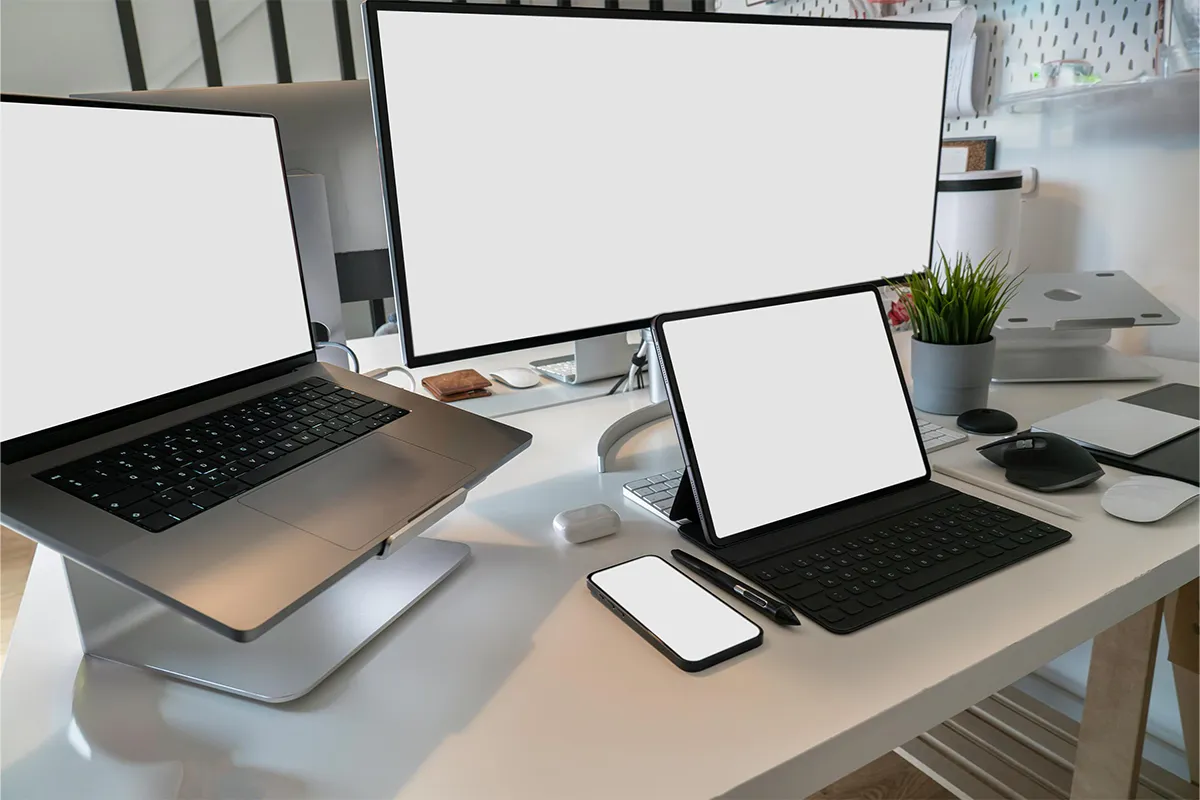
Have you ever questioned yourself about how to double or even triple your productivity without buying another laptop? Yes, this is possible with the best screen extenders for Apple MacBook. Now you do not have to carry another laptop, worry about its charging, or maintain the operating system. Attach the portable laptop screen extenders to one device and get the most out of it. These extenders are easy to carry, lightweight, and allow you to set up your office remotely, anywhere and at any time of the day!
Isn’t this amazing to have your complete office setup while you travel, eat at a restaurant, or hike in the mountains? Indeed, this is possible. Get more done with no more frequent tab switching. Access all the important windows at a time and be more efficient, productive, and never miss an important update.
Top 10 Best Screen Extenders for Apple MacBook
Pick a screen that fits your plan. Match ports, power, size, and stand. Choose the weight and style you enjoy.
1. espresso 15 Pro
The espresso 15 Pro is slim and strong. The metal body feels solid. A bright and sharp panel sits beside your MacBook and looks natural. Touch works smoothly. The magnetic stand holds steady on a desk.
Many people like the one cable setup. One USB-C cable can carry power and video on most new Macs. Your desk stays clean, and setup takes seconds. For the best portable monitor for MacBook Air, this screen feels light in a bag yet firm on a table. If you need more ports or longer reach, add a small hub.
Pros:
- Slim, strong metal build.
- Bright, sharp 15-inch panel.
- Simple single-cable USB-C.
- Stable magnetic stand setup.
Cons:
- Higher price than rivals.
- Limited onboard port options.
- Glossy surface shows reflections.
- Stand accessories cost extra.

2. Lenovo ThinkVision M14t
Lenovo’s M14t brings a clear 14-inch screen and a pen. The dual hinge stand lifts and tilts the panel. You can match the height of your MacBook. The unit packs flat, so travel is easy. Lenovo laptop screen extenders give Mac users a simple, sturdy setup for daily work.
Touch feels accurate. Wide viewing angles help when you share the screen. Notes and quick drawings feel simple with the pen. Use a short USB-C cable for a tidy setup. For Apple Silicon models that need one extra screen, this works well for a dual-screen setup for MacBook Pro M2 or M3.
Pros:
- Accurate touch and pen.
- The dual-hinge stand adjusts height.
- Lightweight and travel-friendly.
- Wide viewing angles help sharing.
Cons:
- Small 14-inch workspace.
- Color gamut is only basic.
- Touch input drains battery.
- Pen storage can feel awkward.
3. Lenovo ThinkVision M14d
The M14d keeps the same handy stand but upgrades the panel. You get a 2.2K, 16 by 10 screen. Extra height helps with text and code. The shape fits Mac scaling very well. Even with the sharper panel, the unit stays light.
Writers and analysts will enjoy clean letters and numbers. Battery use stays gentle when you move around. If you want a crisp second screen for web pages and documents, the M14d is a nice USB-C portable display for Mac that blends in with macOS.
Pros:
- Sharp 2.2K 16:10 screen.
- Very light, easy to carry.
- Crisp text for documents.
- USB-C power and video.
Cons:
- No touch or pen input.
- Brightness is modest for outdoors.
- Glossy panel shows smudges.
- Few ports beyond USB-C.
4. ASUS ZenScreen MB16QHG
The MB16QHG offers a 16-inch QHD panel with 120 Hz refresh. Scrolling looks smooth. Long work feels easier on your eyes. A sturdy kickstand holds the screen in place. Cable paths are neat, so the desk looks tidy.
On-screen controls are simple. A cover can act as a stand when you need it. If you want a screen that helps with work and light play, this is a good step above 60 Hz. For quick angle changes and a steady base, it meets a clip-on laptop screen for MacBook-style needs without wobble.
Pros:
- 16-inch roomy QHD panel.
- 120 Hz smooth scrolling feel.
- Robust kickstand holds angles.
- Clear, simple on-screen controls.
Cons:
- No touch input support.
- Needs decent power delivery.
- Folio adds bag bulk.
- HDR performance is limited.
5. ASUS ZenScreen OLED MQ16AH
This OLED panel shows deep blacks and wide color. Photos look rich. Videos show fine detail in dark scenes. The unit is still light and quick to set up. Often, one cable is enough.
If you edit photos or review designs, this screen helps a lot. After a quick calibration, colors look true and pleasing. Cheaper screens can handle basic tasks, but for color on the move, this is a strong pick for a color-accurate portable monitor for creators.
Pros:
- Deep blacks, wide color.
- Thin, light, easy travel.
- Mini HDMI adds flexibility.
- Excellent contrast for media.
Cons:
- Potential OLED burn-in risk.
- Lower full-screen brightness.
- No touch capability included.
- Higher price than IPS.
6. ViewSonic TD1655
The TD1655 is a friendly choice for budgets. Even cheap laptop screen extenders can give enough space for email, notes, and quick charts. It brings a 15.6-inch touchscreen, a stable stand, and slim bezels. Brightness suits indoor rooms. The build feels steady. While the color range is basic, the text and simple charts look fine.
Setup is easy on new MacBooks. Plug in a USB-C cable, and you are ready. For meetings, travel, or home, this screen meets the need without extra weight. Many people see it as a lightweight screen extender for a MacBook that saves money and keeps stress low.
Pros:
- Good value, budget-friendly.
- Responsive 15.6-inch touch.
- The integrated stand feels stable.
- Plug-and-play over USB-C.
Cons:
- Limited color coverage range.
- Brightness is adequate only indoors.
- Speakers’ sound fairly weak.
- Stand angles are somewhat limited.
7. Mobile Pixels TRIO Max
The TRIO Max slides out from a mount on your laptop lid. You do not need a desk stand. Small tables feel bigger right away. The angle follows your MacBook lid, so side-by-side work is quick.
Because it attaches to the lid, careful setup matters; measure first, and follow the steps. Once set, it stays firm. Chat can live on one side while work stays on the other. When you add the right dock and software, it can support more than one screen and fit a DisplayLink adapter for the M1 Mac dual monitor plan.
Pros:
- Attachable slide-out design.
- Saves space on small desks.
- Fast dual-window workflow.
- Stays mounted between uses.
Cons:
- Adds weight to the laptop lid.
- Fit varies by MacBook model.
- Cables may dangle awkwardly.
- Hinges need careful handling.
8. SideTrak Swivel
The SideTrak Swivel also mounts on the lid. Lightweight clip-on screen extenders keep your desk clear and make setup fast. A hinge lets the screen rotate and pivot. You can face the screen toward a teammate, set it upright, or match its height to your MacBook. This helps your neck and keeps your posture good.
Sales teams and demo users like how fast it sets up. Between meetings, you can fold it flat and go. With a compact GaN charger and a short braided cable, it becomes a simple travel monitor for a MacBook with power delivery that runs all day without clutter.
Pros:
- Hinge rotates and pivots.
- Share screen with teammates easily.
- Compact, portable, quick setup.
- Works well in tight spaces.
Cons:
- Adds noticeable laptop weight.
- Needs alignment adjustments sometimes.
- Not for color-critical work.
- Limited to one added screen.
9. ASUS ROG Strix XG17AHP
The XG17AHP comes from gaming, but it helps with work too. A 240 Hz refresh rate keeps the cursor and scroll very smooth. The tripod lifts the panel to eye level. A built-in battery helps when outlets are far away.
If you split time between spreadsheets and games, this screen does both. Connect to your MacBook for work. Later, switch to a console with no hassle. In that mixed role, it serves as a gaming portable monitor for Mac with 240Hz and still looks professional.
Pros:
- Ultra-smooth 240 Hz refresh.
- The tripod stand raises in height.
- Built-in battery for mobility.
- Large 17-inch workspace.
Cons:
- Expensive for office tasks.
- Bigger and harder to carry.
- The battery requires charge management.
- A micro HDMI adapter is often needed.
10. INNOCN 15K1F
The 15K1F is a budget OLED with strong contrast. The frame is slim. The folio case works well. Colors pop more than many IPS panels at the same price. Edits, dashboards, and quick videos look lively.
You give up fancy stand parts and many ports. Even so, the overall feel is good. If you want OLED on a light budget and you treat the case with care, this model is worthy. For remote work that values color and low weight, it can be the best portable monitor for MacBook Air when you want quality without bulk.
Pros:
- Affordable portable OLED panel.
- Strong contrast and pop.
- Slim, light, easy pack.
- Simple single-cable USB-C.
Cons:
- Basic folio stand only.
- Fewer ports than premium.
- Brightness can be modest.
- Quality control can vary.
How to choose the right MacBook screen extender
Start with ports and power. One USB-C cable that carries display and power keeps the desk clean. Laptop screen extenders for office work keep tasks visible and reduce window switching. If you own an Apple Silicon MacBook and want more than one external screen, look at DisplayLink docks and confirm the app support. Many people use only one extra panel, but a hub lets you grow later.
Next, match the job to the spec. Writers and coders like crisp text and a 16:10 shape. Creators want wide color and steady brightness. Travelers look for under two pounds and a firm stand. Heavy scrollers and gamers may want higher refresh rates. Everyone needs a short, reliable cable and a soft sleeve.
Set up tips for a smooth macOS experience.
A smooth setup focuses on clean connections, correct arrangement, and quick fixes. Confirm your ports, keep your cable run simple, and prepare a fast fallback if the screen does not wake after sleep.
- Open Displays and Arrange: In System Settings, open Displays, choose Arrange, then drag the portable screen to match its real position beside your MacBook.
- Extend, not Mirror: Select Extend to gain workspace instead of duplicating the same image across both screens.
- Tune Scaling: If text looks fuzzy or too small, try one step larger or smaller in Scaling to balance sharpness and comfortable UI size.
- Short, Quality Cables: Use short USB-C cables to limit signal loss and reduce desk clutter.
- Use DP Alt Mode Ports: When connecting through a hub or dock, pick a port that supports DisplayPort Alt Mode for reliable video.
- Wake Fixes: If the screen sleeps and will not wake, disconnect and reconnect the cable or toggle the monitor’s power.
- Match Heights: A laptop stand that aligns the portable panel with your MacBook helps posture and reduces neck strain.
These steps keep your dual-screen setup stable and comfortable. Once arranged, macOS remembers your layout, so reconnecting becomes quick and easy.
Sidecar or hardware
Sidecar lives inside macOS. It turns an iPad into a second screen. If you already own a recent iPad, this can be light and handy. For short tasks, the wire-free setup feels simple. Hardware screens still win for color depth, app behavior, and strong desk posture.
When pen input matters, both paths can work. Sidecar supports Apple Pencil with low delay. Pen-friendly portable screens accept many styluses and feel like a classic tablet. Choose the option that fits your tools and your budget. Many users keep Sidecar for quick sessions and use a portable screen for longer blocks. That balance sits at the heart of MacBook Sidecar vs portable monitor choices.
Power and hubs
A small GaN charger with two USB-C ports can power both the MacBook and monitor from one wall socket. A solid 100 W unit gives headroom. If you also need Ethernet, SD card slots, or extra USB-A ports, add a compact hub. Always confirm that the hub port supports your screen’s resolution and refresh rate.
Some creators like a full dock at home and a tiny dongle on the road. For clear steps, see how to connect and arrange external displays on a Mac. That mix handles complex desks and simple travel. Plan this once, and you avoid surprises later. With smart power and clean cables, a travel monitor for MacBook with a power delivery setup stays light and reliable.
Comparison Table: Screen Extenders for Apple MacBook
| Model | Size class | Panel type | Touch/Pen | Mount or stand | Single-cable USB-C | Key ports | Best for |
|---|---|---|---|---|---|---|---|
| espresso 15 Pro | 15-inch | IPS | Touch | Magnetic stand | Yes on modern MacBooks | USB-C | Premium travel, clean desk |
| Lenovo ThinkVision M14t | 14-inch | IPS | Touch and pen | Built-in dual hinge | Yes on modern MacBooks | USB-C | Notes, sketching, tight spaces |
| Lenovo ThinkVision M14d | 14-inch | IPS 16:10 | No touch | Built-in dual hinge | Yes on modern MacBooks | USB-C | Text clarity, documents, coding |
| ASUS ZenScreen MB16QHG | 16-inch | IPS | No touch | Kickstand plus folio | Yes on modern MacBooks | USB-C, HDMI | Smooth scrolling, larger workspace |
| ASUS ZenScreen OLED MQ16AH | 16-inch | OLED | No touch | Slim folio | Yes on modern MacBooks | USB-C, mini HDMI | Color-critical work on the go |
| ViewSonic TD1655 | 15.6-inch | IPS | Touch | Integrated stand | Yes on modern MacBooks | USB-C | Budget everyday tasks and meetings |
| Mobile Pixels TRIO Max | Fits 14 to 15.6-inch lids | IPS | No touch | Clip-on slide-out | Yes, for one screen | USB-C | Small tables, side-by-side apps |
| SideTrak Swivel | Fits 14 to 15.6-inch lids | IPS | No touch | Clip-on swivel | Yes, for one screen | USB-C | Fast demos, rotate to share view |
| ASUS ROG Strix XG17AHP | 17-inch | IPS, high-refresh | No touch | Tripod or folio | Yes on modern MacBooks | USB-C, micro HDMI | Work by day, gaming after hours |
| INNOCN 15K1F | 15.6-inch | OLED | No touch | Folio | Yes on modern MacBooks | USB-C | Budget OLED color and contrast |
Conclusion
A portable screen extender can change your MacBook in one day. With more space, your focus grows, and your work flows. The ten picks above cover many needs. Several bring deep color. Others stay light and simple. Portable laptop screen extenders help you travel light and keep apps in view. A few offer high refresh rates that make long scrolling easy on the eyes.
Choose by use case, not hype. Writers and coders should pick a crisp 16:10 panel. Photo editors will enjoy OLED or wide color IPS. Travelers will like a firm stand and a short cable that never tangles. When ports, power, stand, and panel match your tasks, your MacBook becomes a steady and roomy partner. That is the promise of the laptop screen extender: Apple options that respect how you work.